Journal
KOS Chatbot Deep Dive: Explorer, Memory, Models
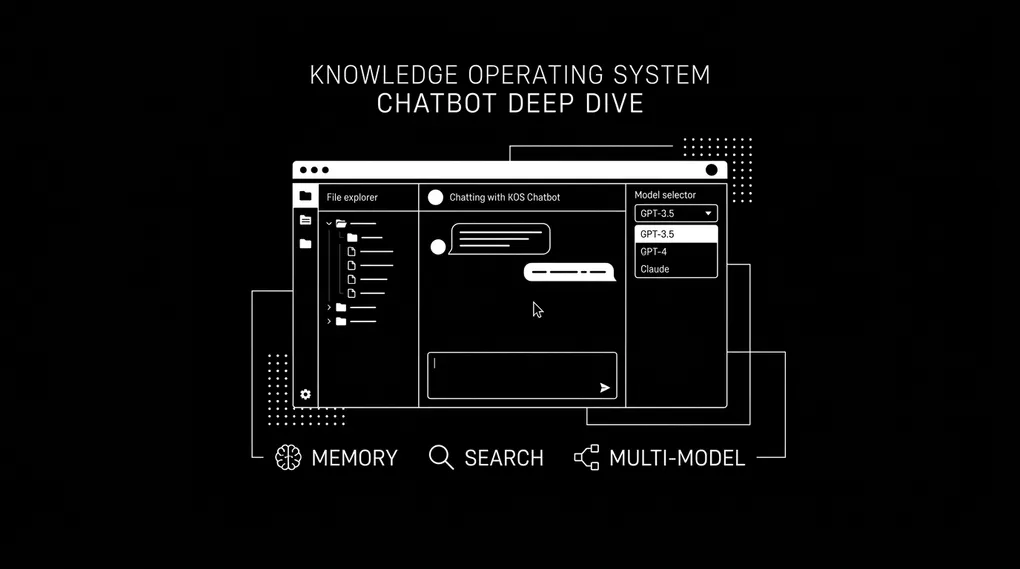
In the first post, I explained how I structured my entire business into YAML files and built a chatbot to query it. That post covered the philosophy and the architecture. This one goes deeper into the features I have built since.
The chatbot is no longer just a chat window. Here is what it includes today:
| Feature | Category | Status |
|---|---|---|
| File Explorer | Document search UI | Live |
| M ou F? | Mini app (French gender) | Live |
| French Tutor | Chat mode | Live |
| Persistent Memory | Two-tier memory system | Live |
| Multi-Model Switching | AI model selector | Live |
| Conversation Logging | Session archive + recall | Live |
| Voice Mode | Speech input | In progress |
| Daily Briefing | Morning summary | In progress |
| Smart Search | Semantic search | In progress |
| Workflows | n8n integration | In progress |
The Document Search UI
The first thing I needed beyond chat was a way to see my data. Not just ask about it. See it.
File Explorer. An IDE-style panel built into the chatbot UI. Click “File Explorer” in the sidebar and the interface shifts. The warm accent tones swap to a cooler blue palette. The layout splits into two panels.
┌─────────────────────────────────────────────────────┐
│  Sidebar  │  Tree Panel (260px)  │  Content Panel   │
│           │                      │                   │
│  KOS      │  data/               │  [View] [Edit]    │
│  French   │  ├── contacts/       │  [AI Changes]     │
│  M ou F?  │  ├── businesses/     │  [Raw]            │
│  Explorer │  ├── projects/       │                   │
│           │  ├── services/       │  Parsed YAML card │
│  ───────  │  meta/               │  or editor        │
│  Coming   │  config/             │  or diff view     │
│  Soon     │  schemas/            │  or raw content   │
│           │  00-inbox/           │                   │
│  [Model]  │                      │                   │
│  [Memory] │  [Filter: ______]    │                   │
└─────────────────────────────────────────────────────┘
The Tree Panel
Key features:
- Directory browsing — shows
data/,meta/,config/,schemas/, and00-inbox/with expand/collapse - Color-coded file types — yellow for YAML, green for Markdown, gray for everything else
- Count badges — each folder shows how many items it contains
- Real-time search filter — type “george” and only matching files remain visible
- Live refresh — tree rebuilds from the API on every load, always reflects current state
Four View Modes
Click any file and the content panel offers four modes:
| Mode | What it shows | Use case |
|---|---|---|
| View | Parsed YAML as formatted cards with _meta badges | Human-friendly reading |
| Edit | Raw file in monospace editor with save button | Direct file modification |
| AI Changes | Line-by-line diff (green = added, red = removed) | See what the chatbot changed |
| Raw | Unprocessed YAML or Markdown | Exact file content on disk |
How each mode works:
- View renders YAML records as cards. A contact file shows the person’s name, title, tags, and all fields laid out cleanly. The
_metablock appears as badges: record type, version number, last modified date. - Edit opens a full-height textarea with monospace font. When you save, the backend creates a timestamped backup before overwriting. Every edit is recoverable.
- AI Changes computes a diff between the current file and its most recent backup. This is how you see exactly what the chatbot changed when it wrote to a file through the chat interface.
- Raw displays the file content exactly as it exists on disk. No formatting, no cards.
Key takeaway: The file explorer turns the chatbot from a question-answering tool into a knowledge management interface. Ask the chatbot about a project, then flip to the explorer and read the full YAML file. Edit a record, save it, immediately ask questions about the updated data. Chat and explorer share the same backend, the same files, the same source of truth.
Mini Apps: M ou F?
Not every interaction with the knowledge base is a conversation. Some things are better as standalone tools.
“M ou F?” is a French gender reference tool built directly into the chatbot UI. I am learning French, and one of the most frustrating parts is memorizing whether a word is masculine or feminine. Every noun. Every time.
How It Works
User types "maison"
      ↓
Sends to current AI model (e.g. GPT-4o)
      ↓
Model returns structured JSON
      ↓
UI renders as formatted card
The card contains:
- Gender badge — masculine (blue) or feminine (pink)
- The word with its article — “la maison” or “le livre”
- Articles grid — all forms in a 2-column layout:
| Article type | Example (feminine) |
|---|---|
| Definite | la |
| Indefinite | une |
| Partitive | de la |
| Contracted (a) | a la |
| Contracted (de) | de la |
- Adjective chips — 3-4 adjectives agreeing with the word’s gender, each with:
- French adjective
- English translation
- Example phrase using word + adjective
- Example sentences — 3-4 natural sentences in three languages:
- French (target language)
- English (translation)
- Farsi (my native language, right-to-left)
- Mnemonic tip — a rule or trick for remembering the gender
Previous lookups appear as clickable pills below the input. Blue for masculine, pink for feminine. Click any pill to see that word’s card again.
Chat vs Mini App
| Approach | Speed | Structure | Overhead |
|---|---|---|---|
| Ask chatbot “Is maison feminine?” | Slow (tool loop, multiple rounds) | Unstructured prose answer | Conversation context required |
| M ou F? mini app | Fast (single API call) | Structured card with all forms | Zero overhead, purpose-built prompt |
The pattern: Chat for exploration, mini apps for utilities. The chatbot handles open-ended questions. Mini apps handle repetitive, structured lookups.
French Tutor Mode
Beyond the gender tool, there is a full French Tutor mode:
- Same chat interface — the message input and response stream stay identical
- Same AI models — swap between GPT-4o, Claude, Gemini
- Same tool-calling — can still reference your knowledge base for personal context
- Different system prompt — the chatbot becomes a conversational French teacher
- Focus areas — grammar, vocabulary, practice conversations, corrections
The Memory System
Every chatbot forgets. Close the tab, start a new session, and it has no idea who you are. The KOS chatbot does not forget.
Two-Tier Architecture
┌─────────────────────────────────────────────┐
│              SYSTEM PROMPT                   │
│                                             │
│  ┌─────────────────────────────────────┐    │
│  │  CORE MEMORY (always loaded)        │    │
│  │  - Preferences                      │    │
│  │  - Corrections                      │    │
│  │  - Cap: 15 entries, ~375 tokens     │    │
│  └─────────────────────────────────────┘    │
│                                             │
│  ┌─────────────────────────────────────┐    │
│  │  EPISODIC MEMORY (query-relevant)   │    │
│  │  - Facts, decisions, patterns       │    │
│  │  - Retrieved by cosine similarity   │    │
│  │  - Top 7 per query, ~175 tokens     │    │
│  └─────────────────────────────────────┘    │
│                                             │
│  ┌─────────────────────────────────────┐    │
│  │  KOS CONTEXT                        │    │
│  │  - Directory map                    │    │
│  │  - File registry                    │    │
│  └─────────────────────────────────────┘    │
└─────────────────────────────────────────────┘| Tier | What it stores | Retrieval | Cap | Token budget |
|---|---|---|---|---|
| Core | Preferences, corrections | Always loaded into every prompt | 15 entries | ~375 tokens |
| Episodic | Facts, decisions, patterns | Semantic similarity to user query | No cap | ~175 tokens/query |
How Memories Are Created
| Method | Trigger | What happens |
|---|---|---|
| Explicit save | Chatbot calls save_memory tool | Routes by category: preference/correction → core, fact/decision/pattern → episodic |
| Auto-extraction | After every conversation with 3+ turns | Background model reads full conversation, extracts memories aggressively |
| Manual save | User clicks in memory panel UI | View, search, delete individual memories. “Tidy Up” triggers consolidation |
Memory Categories
| Category | Tier | What it captures | Example |
|---|---|---|---|
preference | Core | How you like things done | ”Prefers bullet-point summaries over paragraphs” |
correction | Core | Things you corrected | ”George’s company is Quantum Club, not Quantum Group” |
fact | Episodic | Important information | ”Colin’s contract ends March 2026” |
decision | Episodic | Conclusions reached | ”Using Stripe for Quantum Club payments” |
pattern | Episodic | Recurring themes | ”Frequently asks about content pipeline status” |
Auto-Consolidation
When core memory exceeds 30 entries, the system triggers cleanup automatically:
- A background model reads all core entries
- Merges duplicate or near-duplicate memories into one
- Removes outdated entries superseded by newer corrections
- Keeps language concise (1-2 sentences per entry)
- Prioritizes preferences and corrections over general facts
- Writes the cleaned result back to disk
You never have to think about it.
The Memory Panel UI
The memory panel slides in from the right as a drawer overlay. Each entry shows:
- Tier badge — gold for core, gray for episodic
- Category badge — color-coded (purple for preference, green for fact, orange for correction, pink for decision, blue for pattern)
- Content text — the memory itself
- Timestamp — when it was saved
- Delete button — remove anything wrong or outdated
- Search — filter memories by keyword
- Tidy Up button — trigger manual consolidation
Key takeaway: The memory system makes the chatbot compound over time. It learns how you like information presented, what corrections you have made, what decisions you have reached. Next session, it already knows.
Multi-Model AI Switching
The chatbot is not locked to one AI provider. A dropdown in the sidebar lets you switch at any time.
Available Models
| Model | Provider | Best for | Speed | Cost |
|---|---|---|---|---|
| GPT-4o | OpenAI | Structured tool use, general reasoning | Fast | $$ |
| GPT-4o Mini | OpenAI | Quick lookups, cost-sensitive queries | Very fast | $ |
| Claude Sonnet 4 | Anthropic | Nuanced writing, careful analysis | Medium | $$ |
| Gemini 2.5 Flash | Speed with good accuracy | Very fast | $ | |
| Gemini 2.5 Pro | Deep reasoning, long context | Medium | $$ |
How It Works
litellm handles the routing. The architecture is model-agnostic:
User selects model from dropdown
      ↓
Same tool schemas (read_file, search_content, etc.)
      ↓
Same system prompt (KOS context + memory)
      ↓
Same session state (conversation history preserved)
      ↓
Different LLM brain processes the request
      ↓
Same streaming UI renders the response
Key behaviors:
- Mid-conversation switching — change from GPT-4o to Claude and the chatbot keeps going. Session state stays the same. Only the brain changes.
- Mini apps use the same selector — check a French word with GPT-4o, then switch to Claude and check again. Different examples, different mnemonics, different adjective choices.
- No code changes needed — litellm normalizes all provider differences. Add a new model by adding one line to the config.
Key takeaway: Running multiple models against the same structured prompt and the same knowledge base is one of the fastest ways to learn where each model excels. When one model gives a weak answer, switch and ask again. Same data, same tools, different perspective.
Conversation Logging and Recall
Every conversation is saved to disk automatically.
Storage Structure
conversations/
├── 2026/
│   ├── 01/
│   │   ├── 2026-01-15_a3f8b2c1.json
│   │   └── 2026-01-15_d7e4c9a2.json
│   └── 02/
│       ├── 2026-02-20_b1c3d5e7.json
│       ├── 2026-02-22_f9a1b3c5.json
│       └── 2026-02-23_e2d4f6a8.json
Recall Tool
| Tool | Input | Output |
|---|---|---|
recall_conversation | Date in YYYY-MM-DD format | Full conversation transcripts from that date |
Ask “What did we talk about on February 20th?” and the chatbot pulls the conversation transcripts from that date.
How it pairs with memory:
- Memory captures the insights (preferences, facts, decisions)
- Conversation logs capture the full context (everything said, in order)
- Together they give the chatbot both quick-access knowledge and deep recall
What Is Coming Next
The sidebar shows four features marked “in progress”:
| Feature | What it will do | Pattern |
|---|---|---|
| Voice Mode | Speak to the knowledge base instead of typing | New input method → same tool loop |
| Daily Briefing | Morning summary of tasks, projects, calendar | New UI panel → reads existing YAML data |
| Smart Search | Semantic search across the entire knowledge base | New tool → embedding-based file retrieval |
| Workflows | Trigger n8n automations from the chatbot | New tool → calls n8n webhook endpoints |
Each one follows the same architecture pattern. Adding a new feature means:
- Add a new tool schema (JSON function definition)
- Add a new API endpoint (FastAPI route)
- Add a new panel in the UI (HTML + JS in the single-page app)
The data is structured. The interface is modular. The tools are composable.
The Architecture Pattern
Every feature in the chatbot follows the same formula:
YAML Files (source of truth)
      ↓
Tools (read, search, write, move)
      ↓
LLM (processes with tools)
      ↓
UI Shell (chat, explorer, mini apps)
      ↓
Memory (compounds value over time)
The four principles:
- Data lives in YAML files. The knowledge base is the source of truth.
- Tools expose the data. Read, search, write, move. The LLM uses tools to interact with the data.
- The UI is a shell. Chat, explorer, mini apps. Each is a different view into the same backend.
- Memory compounds value. The more you use it, the more it knows. The more it knows, the better it answers.
| Property | Value |
|---|---|
| Total Python backend | ~1,100 lines across 4 files |
| Frontend | 1 HTML file |
| Database | None (JSON + YAML on disk) |
| Monthly hosting cost | $0 |
| Models supported | 5 (any litellm-compatible model) |
| Vendor lock-in | Zero |
The data is the product. Everything else is a view.
If you want to build something like this for your business, reach out. This is what I do at ConnectMyTech. Observe the bottleneck, design the system, build it. My name is Shahab Papoon, and I help businesses turn scattered knowledge into structured systems that AI can actually use.