Journal
Turn Your Canva LinkedIn Posts Into Animated Videos
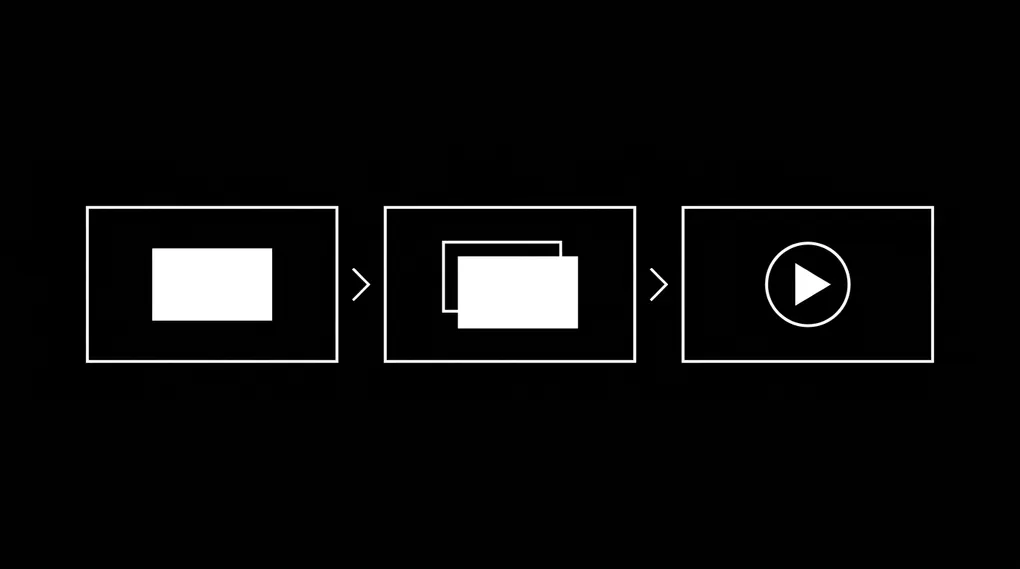
You designed a LinkedIn post in Canva. It looks good as a static image. But a 30-second animated version of that same design would stop more thumbs mid-scroll than the PNG ever will.
Remotion is a framework that turns React components into rendered MP4 videos. Claude Code is a terminal tool that writes and edits code on your machine. Combine them and you get a workflow where you describe an animation in plain English, preview it in your browser, and export a finished video file. No After Effects. No timeline dragging. No video editing experience required.
I have been using this workflow to turn static designs into short animated clips for LinkedIn. This guide walks you through the full setup from scratch, then shows you how to build and render your first animated post.
What You Need Before Starting
Three things installed on your computer, plus a Claude Pro subscription.
- Node.js version 18 or higher
- Claude Code (included with Claude Pro, runs in your terminal)
- A terminal app (Terminal on Mac, PowerShell on Windows)
If you are on Windows, install Git for Windows as well.
You already have Claude Pro at claude.ai. Claude Code is separate from the chat interface. It runs inside your terminal and reads, writes, and modifies files on your machine.
Install Node.js
Remotion runs on Node.js. Open your terminal and check if you have it:
node --versionIf you see v18 or higher, skip to the next section.
If you see “command not found” or a version below 18, go to nodejs.org, download the LTS version (the green button on the left), and run the installer. Accept all defaults.
After the installer finishes, close your terminal and open a new one. The terminal needs to refresh before it recognizes the new installation. Then verify:
node --version
npm --version
Both should print version numbers. If node still says “command not found,” restart your computer and try again.
Install Claude Code
Claude Code is a command-line tool that lets Claude work with files on your computer.
Mac or Linux:
curl -fsSL https://claude.ai/install.sh | bashWindows (PowerShell):
irm https://claude.ai/install.ps1 | iexClose and reopen your terminal after installation, then verify:
claude --versionLog in (first time only)
claude loginThis opens a browser window. Log in with your Claude Pro account, approve the connection, and return to your terminal.
Create Your Remotion Workspace
This is the folder where all your animated LinkedIn posts will live. Each post gets its own subfolder.
Mac:
mkdir -p ~/Desktop/remotion
cd ~/Desktop/remotion
Windows (PowerShell):
mkdir $HOME\Desktop\remotion
cd $HOME\Desktop\remotion
Create your first Remotion project
Inside the remotion folder, run:
npx create-video@latestIt will ask you several questions:
- Project name:
my-first-post(or whatever you want) - Template: Select Blank
- Use TailwindCSS? Yes
- Install Skills? Yes
Then install dependencies:
cd my-first-post
npm install
This downloads everything Remotion needs. Takes a minute or two.
Install Remotion Skills for Claude Code
Remotion publishes a set of “skills” that teach Claude Code how Remotion’s APIs work. Without them, Claude guesses at function names and patterns. With them, Claude uses the correct APIs on the first try.
If you said “yes” to skills during project creation, they are already installed. If not, run this inside your project folder:
npx skills add remotion-dev/skillsThis puts skill files into .claude/skills/ inside your project. They cover animations, audio, compositions, fonts, subtitles, and sequencing.
Verify:
ls .claude/skills/remotion-best-practices/You should see a SKILL.md file and a rules/ folder.
Set Up the CLAUDE.md Project File
A CLAUDE.md file gives Claude Code persistent context about your project. Every time Claude Code starts in a folder with a CLAUDE.md, it reads the file first. This means you do not re-explain your project structure, naming conventions, or render settings every session.
Create this file in your main remotion folder (not inside any individual post folder):
cd ~/Desktop/remotionCreate a file called CLAUDE.md with this content:
# Remotion Animated LinkedIn Posts

## Project Context
This workspace creates animated LinkedIn content videos using Remotion.
Static LinkedIn post visuals from Canva get animated into short video content.

## Workspace Structure

### Folder Organization
- Main workspace: ~/Desktop/remotion/
- Each LinkedIn post gets its own Remotion project folder
- Naming convention: YYYY-MM-DD-post-topic (example: 2026-04-01-leadership-tips)
- Never modify files in one post folder while working on another
- No loose files outside of post folders

### Creating a New Post Project
When starting a new video:
1. Ask for the post topic or title
2. Create a new project: npx create-video@latest
3. Use Blank template with TailwindCSS enabled
4. Install Remotion skills if not present
5. Run npm install
6. Name the folder YYYY-MM-DD-post-topic

### Working With Canva Exports
- Canva designs come as PNG or SVG files
- Place all imported assets in the project's public/ folder
- Reference them using staticFile() from remotion
- Maintain original aspect ratios from Canva
- LinkedIn video specs: 1920x1080 (landscape), 1080x1080 (square), 1080x1920 (stories)

## Remotion Workflow

### Preview (Remotion Studio)
- Start preview: npm run dev
- Opens at http://localhost:3000
- Timeline, play/pause, frame-by-frame scrubbing
- Props panel on the right updates preview live
- Built-in Render button for exporting

### Rendering Final Video
From Studio UI (easiest):
1. Click "Render" button in top right
2. Select composition
3. Codec: H.264, CRF: 18
4. Click "Render video"
5. Output goes to out/ folder

From command line:
npx remotion render src/index.ts MyComposition out/video.mp4 --codec=h264 --crf=18

### LinkedIn Video Specs
| Format | Resolution | Aspect Ratio | Duration |
|--------|-----------|-------------|----------|
| Feed | 1920x1080 | 16:9 | 30-90 sec |
| Square | 1080x1080 | 1:1 | 30-90 sec |
| Stories | 1080x1920 | 9:16 | up to 20 sec |

## Animation Best Practices
- spring() for natural-feeling entrances, not linear motion
- interpolate() for smooth transitions between values
- Stagger related elements by 8-12 frames for visual rhythm
- Keep text on screen minimum 2-3 seconds
- Use TransitionSeries for scene transitions
- Use Sequence to control when elements appear
- Always use Remotion skills when writing animation code

## Common Commands
| Task | Command |
|------|---------|
| Start preview | npm run dev |
| Render video | npx remotion render src/index.ts Name out/video.mp4 |
| High quality render | npx remotion render src/index.ts Name out/video.mp4 --codec=h264 --crf=18 |
| Install skills | npx skills add remotion-dev/skills |
| Check project | npx remotion doctor |

## Notes
- FFmpeg is bundled with Remotion. No separate install needed.
- Always use staticFile() for assets in public/
- Never use absolute file paths for assets
- If preview differs from render, check composition dimensions
Build Your First Animated LinkedIn Post
You have the tools installed and the workspace configured. Here is the full workflow from Canva export to rendered video.
Step 1: Export your Canva design
In Canva, export your LinkedIn post as a PNG at the highest quality. Save it somewhere you can find it (Downloads folder works).
Step 2: Create a new post project
cd ~/Desktop/remotion
npx create-video@latest
When prompted:
- Project name:
2026-03-30-first-animated-post - Template: Blank
- TailwindCSS: Yes
- Skills: Yes
cd 2026-03-30-first-animated-post
npm install
Step 3: Add your Canva export
Copy the PNG into the project’s public/ folder:
Mac:
cp ~/Downloads/your-canva-design.png public/background.pngWindows:
Copy-Item "$HOME\Downloads\your-canva-design.png" -Destination "public\background.png"Step 4: Start the preview
npm run devRemotion Studio opens in your browser. Leave this terminal running.
Step 5: Open Claude Code in a second terminal
Open a new terminal window. Do not close the first one.
cd ~/Desktop/remotion/2026-03-30-first-animated-post
claude
Step 6: Prompt Claude to build the animation
Paste this into Claude Code and customize the text in brackets:
I have a LinkedIn post background image at public/background.png.
Create a 1080x1080 composition at 30fps that is 5 seconds long (150 frames).

The animation should:
1. Fade in the background image over the first 20 frames
2. After the background is visible, animate a headline that says
   "[YOUR HEADLINE HERE]" sliding in from the bottom with a spring animation
3. Add a subtle scale animation on the background (slow zoom from 1.0 to 1.03
   over the full duration) for a Ken Burns effect

Use white text with a semi-transparent dark overlay behind it for readability.
Use the Remotion best practices skill.
Make sure the composition is registered in src/Root.tsx.
Claude creates the composition files and registers them. The preview updates in your browser.
Step 7: Iterate
Keep talking to Claude in the same session. Some useful follow-ups:
Add more elements:
Add a subtitle below the headline that says "[YOUR SUBTITLE]"
that fades in 15 frames after the headline finishes its animation.
Adjust timing:
Make the headline appear faster and hold on screen for 1 more second
before anything else happens.
Add an outro:
Add a 2-second outro where all text fades out and my logo
(public/logo.png) fades in centered on screen.
Change aspect ratio:
Create a second composition called "FeedVersion" at 1920x1080 (16:9)
with the same animation adapted for the wider format.
Step 8: Render the final video
From Remotion Studio (easiest):
- Click the “Render” button in the top right
- Select your composition
- Set codec to H.264, CRF to 18
- Click “Render video”
- Output lands in the
out/folder
From Claude Code:
Render the MyComposition composition as an MP4 with H.264 codec,
CRF 18, to out/linkedin-post.mp4
From terminal:
npx remotion render src/index.ts MyComposition out/linkedin-post.mp4 --codec=h264 --crf=18Step 9: Upload to LinkedIn
Your rendered MP4 is in the out/ folder inside your project. Open Finder (Mac) or Explorer (Windows), navigate to Desktop/remotion/2026-03-30-first-animated-post/out/, grab the file, and upload it to LinkedIn as a native video post.
The Ongoing Workflow
Every new animated post follows the same pattern:
- Export the Canva design as PNG
- Open terminal, go to
~/Desktop/remotion/ - Run
npx create-video@latestwith a new dated folder name - Copy the PNG into the new project’s
public/folder - Start the preview with
npm run dev - Open a second terminal,
cdinto the project, runclaude - Describe the animation you want
- Iterate until the preview looks right
- Render and upload
The CLAUDE.md file in the parent folder means Claude already knows your conventions, folder structure, and render settings every time you start a session.
LinkedIn Video Specs Quick Reference
| Setting | Value |
|---|---|
| Feed resolution | 1920x1080 (16:9) |
| Square resolution | 1080x1080 (1:1) |
| Stories resolution | 1080x1920 (9:16) |
| Best duration | 30 to 90 seconds |
| Max file size | 5GB (aim under 100MB) |
| Max duration | 10 minutes |
| Codec | H.264 |
| CRF (high quality) | 18 |
| CRF (smaller file) | 23 |
| Audio codec | AAC |
Troubleshooting
“command not found: node” — Close your terminal and open a new one. If that fails, restart your computer. If that fails, reinstall from nodejs.org.
“command not found: claude” — Run the installer again. Mac: curl -fsSL https://claude.ai/install.sh | bash. Close and reopen terminal.
Preview not updating after changes — Refresh the browser page. If that does not help, stop the dev server (Ctrl+C) and restart with npm run dev.
Render takes a long time — Rendering is CPU-intensive. A 30-second 1080p video might take 1 to 5 minutes. Speed up test renders with --crf=28 (lower quality) or --scale=0.5 (half resolution).
“Error: No composition with ID found” — The composition name in your render command must match what is registered in src/Root.tsx. Check for typos and capitalization.
Skills not loading in Claude Code — Run npx skills add remotion-dev/skills inside your project folder, then exit and restart Claude Code.
Quick Reference
| Task | Command |
|---|---|
| Check Node version | node --version |
| Install Claude Code (Mac) | curl -fsSL https://claude.ai/install.sh | bash |
| Log in to Claude Code | claude login |
| Create new project | npx create-video@latest |
| Install dependencies | npm install |
| Start preview | npm run dev |
| Start Claude Code | claude |
| Install Remotion skills | npx skills add remotion-dev/skills |
| Render video | npx remotion render src/index.ts Name out/video.mp4 --codec=h264 --crf=18 |
| Quick draft render | npx remotion render src/index.ts Name out/draft.mp4 --crf=28 --preset=ultrafast |